- #a11y
- #testing
- #screenreader
Importance Of Lists
Semantic structure is the foundation for accessible markup, as they properly convey information to...
 Julia 👩🏻💻 GDE2 min read8
Semantic structure is the foundation for accessible markup, as they properly convey information to the user through the accessibility API via screen readers.
In this article, let’s take a closer look at how a screen reader interacts with a list, provided it is written with correct semantic HTML.
Access lists with a screen reader
When the screen reader encounters a list, it announces that it is a list and how many elements the list contains.
Depending on the type of list, the screen reader reads the list slightly differently.
Ordered lists
Ordered lists are written with a parent element <ol> containing child elements of <li>.
The screen reader announces e.g. list, 3 items, 1 list-element 1, 2 list-element 2, 3 list-element 3.
Unordered lists
Unordered lists are written with a parent element <ul> containing child elements of <li>.
The screen reader announces e.g. list, 3 items, bullet list-element 1, bullet list-element 2, bullet list-element 3.
Description lists
Description lists are written with a parent element <dl>, a term element <dt> containing child elements of <dd>.
The screen reader announces e.g. description list, 3 items, term, term element, child element 1, group, child element 1, … .
Access lists with a screen reader (live demo)
I am using VoiceOver on the MacBook Air. I tried it in Safari, Chrome and Firefox, it worked the same everywhere.
The Control + Option combination is often referred to as VO.
Let’s take a look on how I went through the lists in this example. To read the page use VO + A, to stop it use Control.
You can find the example to test it on your own on codepen.
https://codepen.io/YuriDevAT/pen/eYrXxjP
| Methods | Screen Reader | Browser | Command |
|---|---|---|---|
| Show All Lists | VoiceOver | Safari | Control + Option + U (to open rotor*), but List was not shown in the web rotor, even though I selected the item in the settings* |
| Navigate from One List Item to the Next | VoiceOver | Safari | Control + Option + Command + X |
*I did research on other browser/screen reader combination. I found out that with JAWS with Chrome or Firefox you can do Control + L to show all lists.
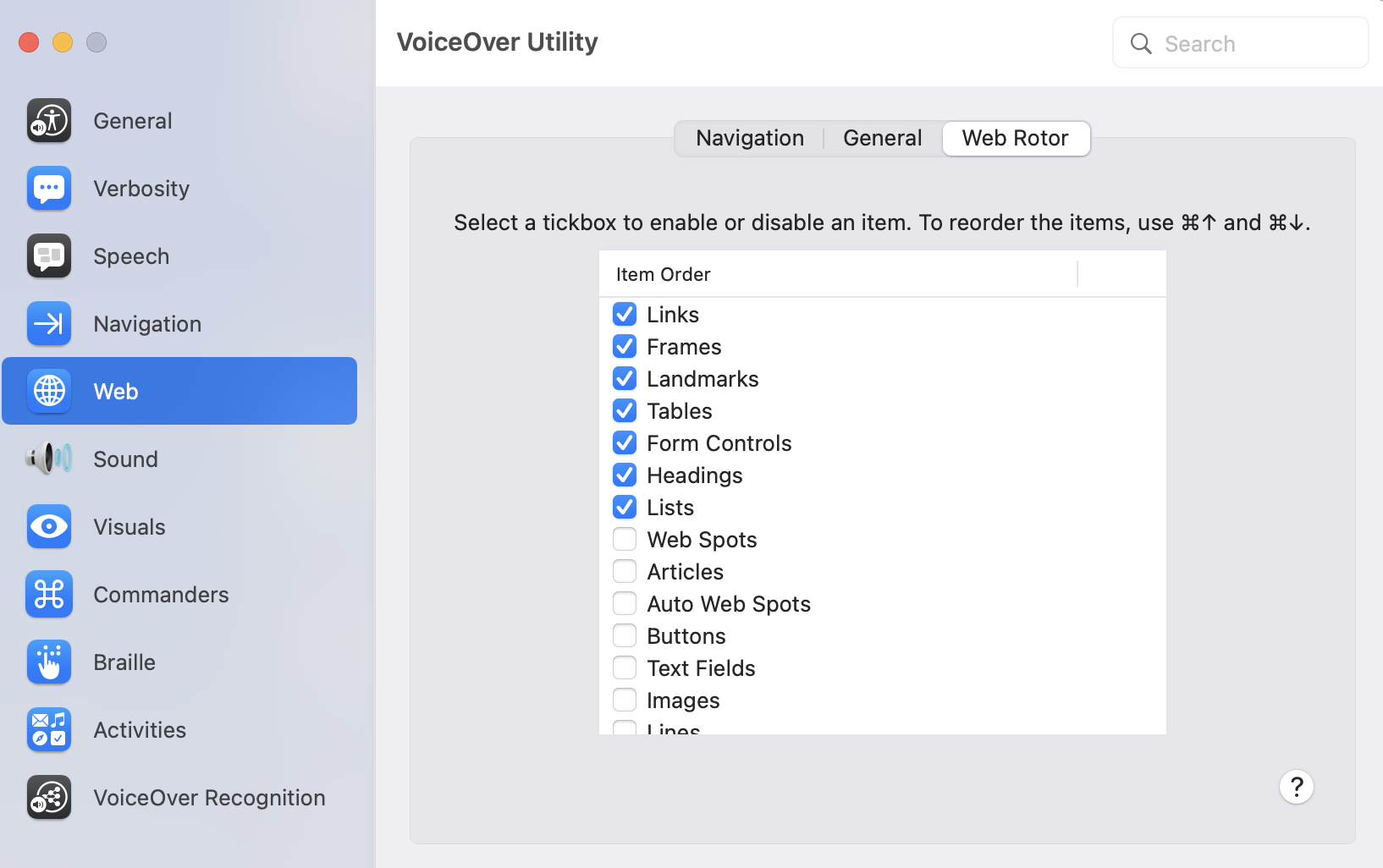
Note: If you have further information on this I would be happy if you could share in the comments.
Follow me for more accessibility content on:
Website - accessibilityfirst.xyz Instagram - accessibilityfirst.xyz LinkedIn - accessibilityfirst

